Tool: Upload Tool 📤
The Upload Tool is a versatile node that allows you to directly upload files into your workflow during a run. It's the perfect tool for when you need to provide a file—like an image, a PDF, or a text document—for an Ai Agent to process on the fly.
How It Works
The Upload Tool acts as a placeholder for a file. When you run a workflow containing this tool, the execution will pause, and a pop-up window will appear, prompting you to upload a file from your computer. Once you upload the file, the workflow resumes, and the file's data is passed to the next node.
It is almost always connected to the Tool input of an Ai Agent to give the agent a file to work with.
Supported Files
- File Types: You can upload images (e.g.,
jpeg,png), text files (.txt,.md), and PDFs (.pdf). - Maximum Size: The maximum file size is 10MB.
Setup & Configuration
The Upload Tool is one of the simplest to configure.
-
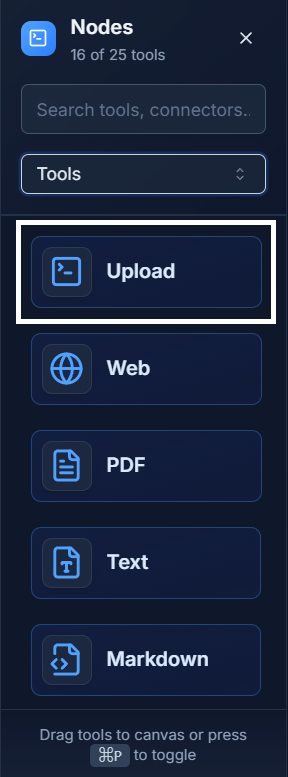
Add the Tool: Drag the Upload Tool from the Tools panel onto your canvas.
-
Connect It: Connect the output of the Upload Tool to the
Toolinput socket of an Ai Agent. No further configuration is needed on the node itself.

Using the Tool in a Workflow Run
The main interaction with this tool happens when you run the workflow.
- Click the "Run Workflow" button.
- When the workflow reaches the Upload Tool, a file dialog will appear.
- Click to browse or drag and drop your desired file into the window.
- Once the upload is complete, the workflow will automatically continue to the next step.
Example: Image Analysis on Demand 💡
Create a workflow where you can upload any image and have an Ai Agent describe what's in it.
-
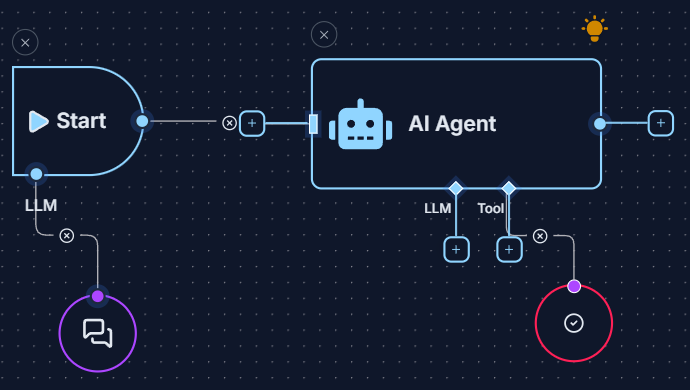
Set Up the Workflow:
- Create a Start Node (the chat bubble).
- Add an Ai Agent.
- Add an Upload Tool.
- Connect the Start Node to the main input of the Ai Agent.
- Connect the Upload Tool to the
Toolinput of the Ai Agent. - In the Start Node, enter the prompt: "Describe the contents of the file provided by the user."
Your workflow should look like this:
-
Run the Workflow:
- Click "Run Workflow".
- When prompted by the Upload Tool, select an image file from your computer.
-
Get the Result: The Ai Agent will receive the image from the Upload Tool, analyze it based on your prompt, and generate a description. You can view this description in the Logs panel.
Quick Tips
- Interactive Workflows: The Upload Tool is specifically for interactive workflows that you run manually. It will not work with automated triggers like the Schedule Trigger because no one will be there to upload the file.
- One File at a Time: This tool is designed to handle a single file upload per run.
- Alternative for Pre-set Files: If your workflow always needs to use the same file, use the PDF Tool or Text Tool instead, as you can pre-configure the file in the editor.