Util: Schedule Trigger ⏰
The Schedule Trigger is an automated starting point for your workflows. Unlike the Start Node, which requires you to manually run the workflow, this trigger will execute it automatically at a specific time or on a repeating interval.
How It Works
The Schedule Trigger should be the very first node in any workflow that you want to run automatically. When the configured time is reached, it will trigger the workflow and pass control to the next connected node.
You can choose between two main modes:
- Run Once: Executes the workflow a single time at a future date and time. Perfect for scheduling a one-off task.
- Repeat: Executes the workflow on a recurring schedule, such as every hour, every day at 9 AM, or every Monday.
Key Settings
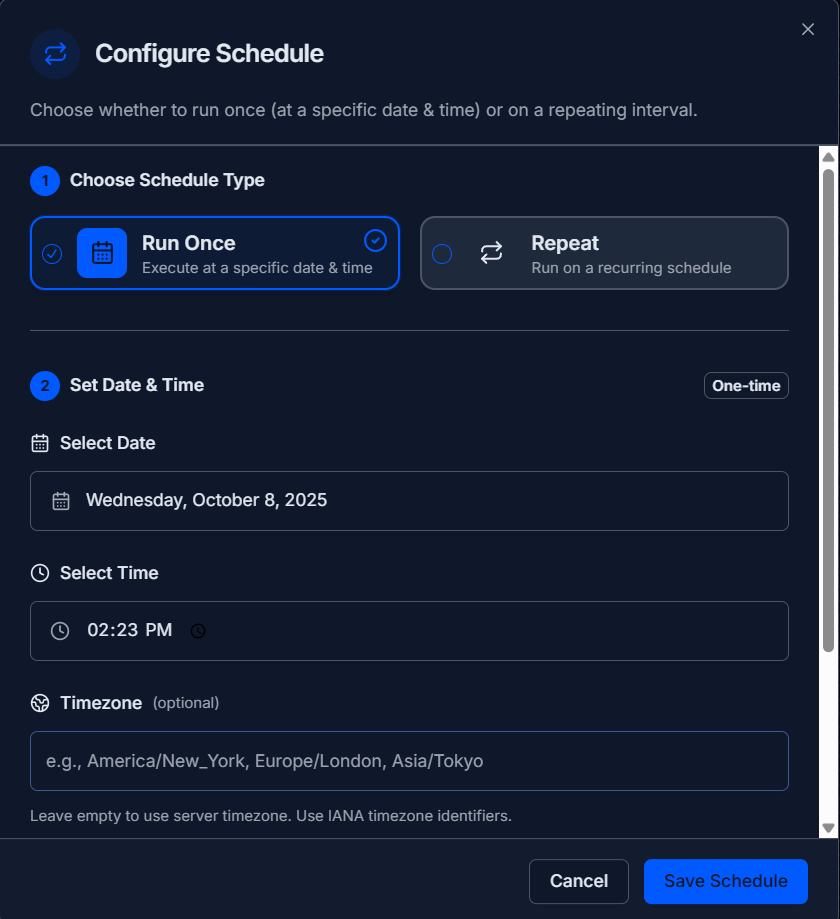
Double-click the node to open the Configure Schedule panel.
-
Choose Schedule Type: Select whether you want the workflow to run once or on a repeat schedule.
-
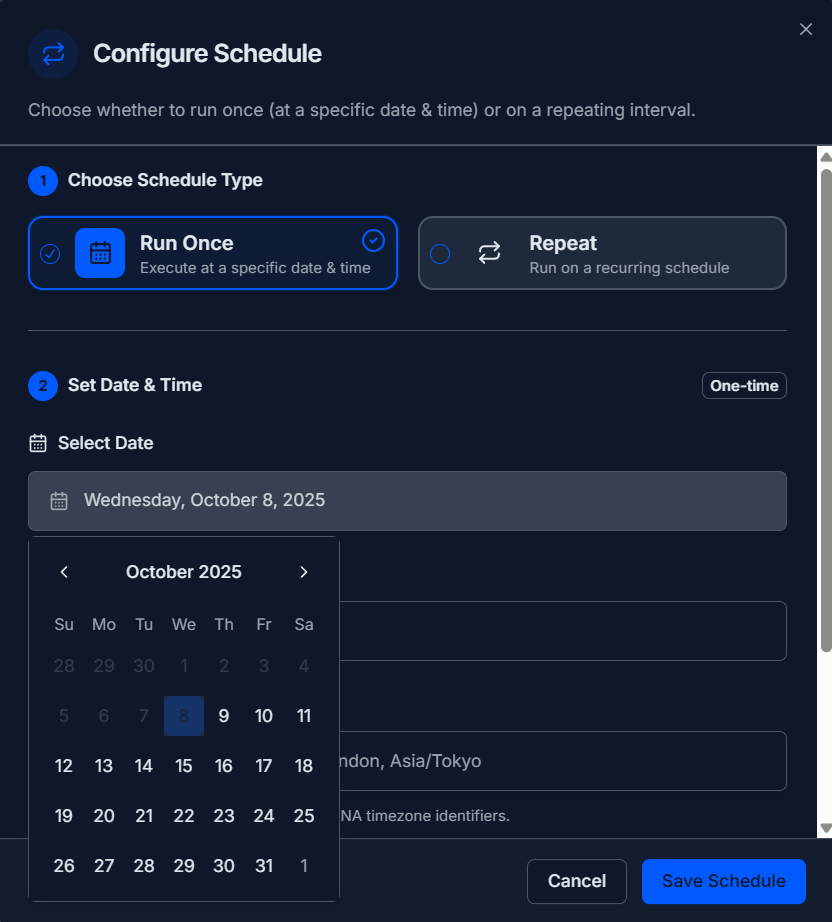
Set Date & Time (for Run Once): If you choose "Run Once," you will specify the exact date and time for the execution.
-
Configure Interval (for Repeat): If you choose "Repeat," you will set the interval, such as every
1Houror every5Minutes.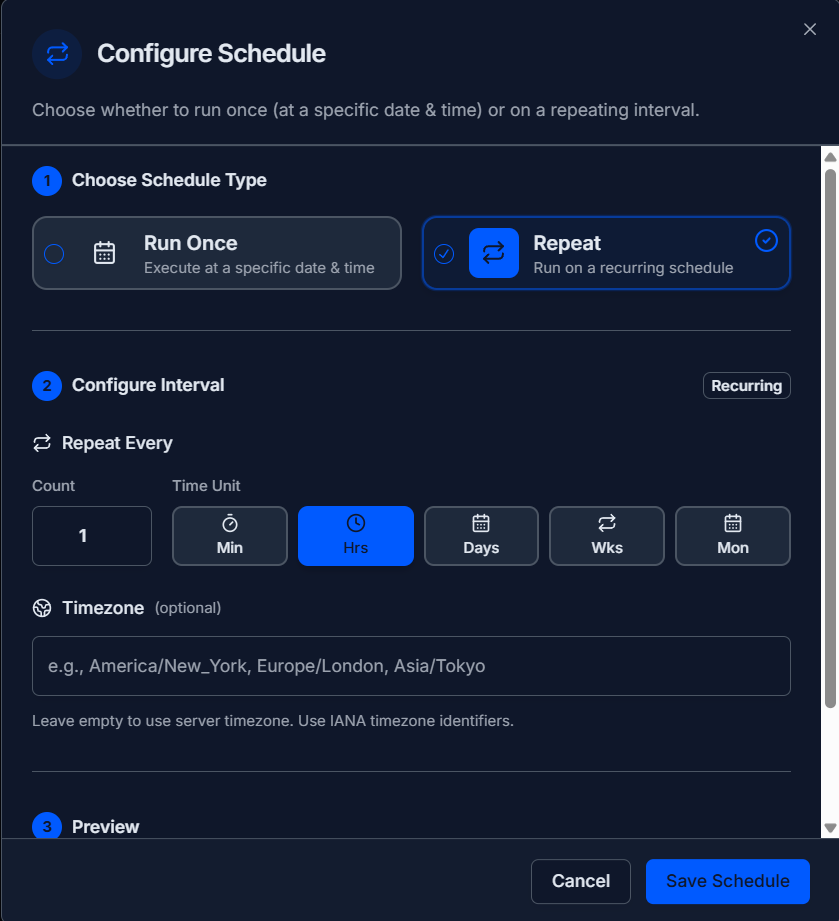
Setup
- Drag the Schedule Trigger from the Utils panel onto a blank canvas.
- Double-click the node to open its settings.
- Choose your Schedule Type ("Run Once" or "Repeat").
- Configure the specific date/time or the repeating interval.
- Set a Timezone if the task is time-sensitive for a specific region.
- Click Save Schedule.
- Connect the output of the Schedule Trigger to the next node in your workflow (e.g., an Ai Agent).
Example: Daily News Summary 💡
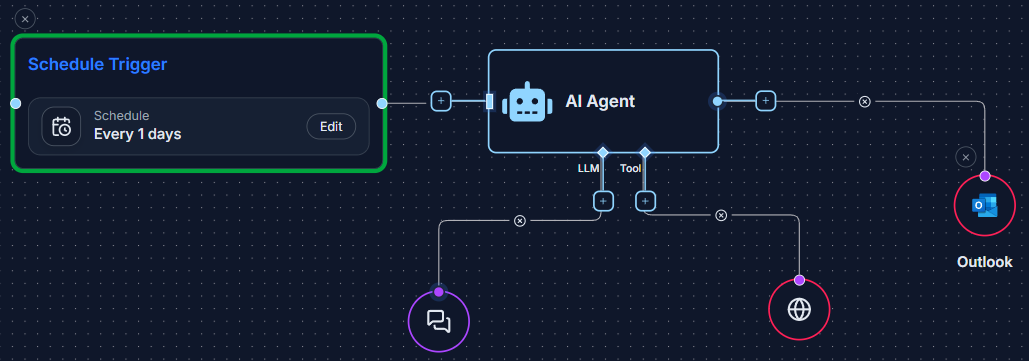
Create a workflow that automatically fetches the top news headlines every morning and sends a summary to your team.
- Configure a Schedule Trigger to Repeat every
1 Dayat8:00 AM. - Connect it to a Web Tool that is configured to access a news website.
- Connect the Web Tool to an Ai Agent with the instruction: "Summarize the key headlines from the provided text."
- Connect the Ai Agent to a Microsoft Teams Connector to post the summary in a "Daily Briefing" channel.
Quick Tips
- One Trigger Per Workflow: A workflow can only have one starting point. Use either a
Start Nodefor manual runs or aSchedule Triggerfor automated runs, but not both. - Timezones Matter: If you don't specify a timezone, the schedule will run based on the server's time. For precise timing, always set a timezone (e.g.,
America/New_York). - No Input Connection: Since this node starts a workflow, it will never have a node connected to its input.