Util: Ai Agent 🧠
The Ai Agent is your smart orchestrator for automation. Think of it as the project manager or "brain" of a task. You give it instructions, and it uses an LLM for intelligence and other Tools for specific skills (like reading files or searching the web) to get the job done.
How It Works
The Ai Agent works by combining three key components: an LLM, optional Tools, and your specific instructions.
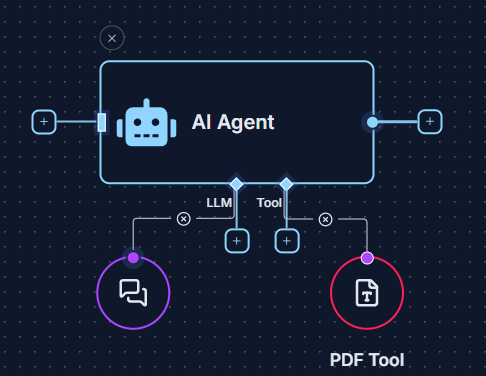
- Providing LLM Intelligence (Required)
Every Ai Agent needs a "language engine" to think.
- Global LLM (Recommended): Connect an LLM util to your workflow's Start node. This sets a default LLM for all Ai Agents.
- Specific LLM (Optional): Connect an LLM util directly to an Ai Agent's
LLMinput socket to override global settings.
For details on global configuration, see the Start Node documentation.
-
Tool Connections (Optional)
ConnectToolsto theToolinput socket to give your agent special abilities. -
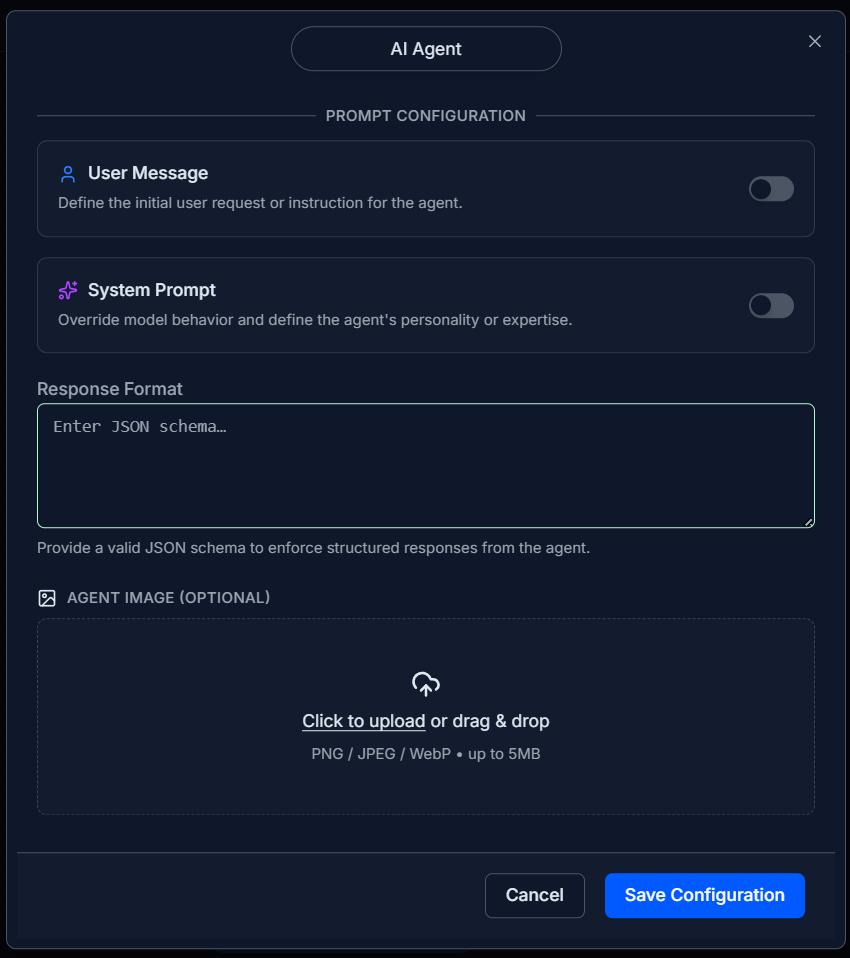
Your Instructions (Configuration)
Set the User Message, System Prompt, and optional Response Format in the agent settings.
Viewing the Output
After a workflow runs, check results in the Logs panel.
Setting Up Your Ai Agent
- Drag Ai Agent from Utils onto your canvas.
- Ensure an LLM is available (global or specific).
- Connect optional Tools.
- Connect your data input.
- Configure and Save.
Example: Document Q&A Agent 💡
- Load a document using File Read Tool.
- Input a question via Start Node.
- Connect File Read Tool → Ai Agent
Toolinput. - Connect Start Node → Ai Agent main input.
- Set User Message:
"Using the provided document, answer the user's question."
Check answers in the Logs panel.
Quick Tips
- Be specific in your instructions.
- Use Response Format for consistency.
- No memory between runs; provide all inputs each time.