Tool: Postgres Database 🐘
The Postgres Database Tool allows your Agent Vector workflows to connect directly to a PostgreSQL database. This enables your Ai Agents to read, insert, update, or delete data, making it a powerful tool for building data-driven automations.
How It Works
This tool acts as a bridge between your workflow and your database. You provide the connection details and permissions, and then an Ai Agent can be instructed to perform actions on the database using natural language. The agent intelligently translates your requests into SQL queries.
Setup & Configuration
Securely connecting to your database is the most important step.
1. Add the Tool
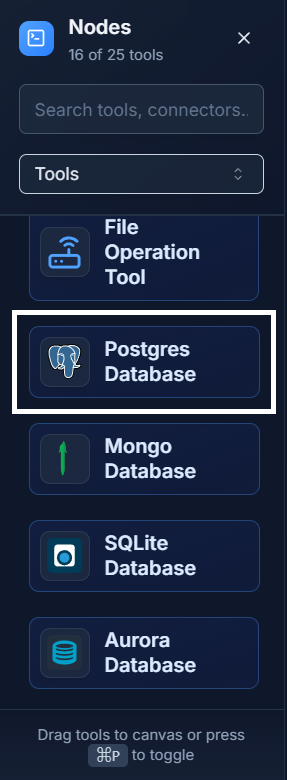
First, drag the Postgres Database tool from the Tools panel onto your canvas.
2. Configure Connection Details
Double-click the node to open the Configure Database panel. This is where you tell Agent Vector how to find and log in to your database.
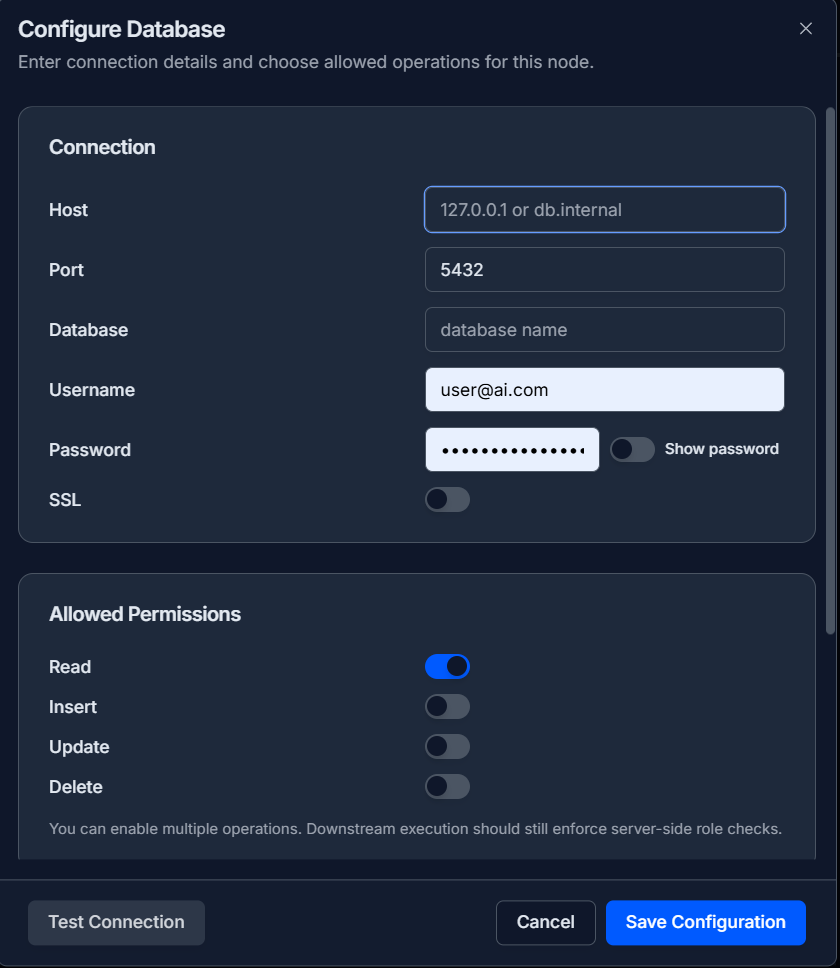
- Host: The server address of your database (e.g.,
localhostor an IP address/domain name likedb.example.com). - Port: The port your database is listening on. The default for Postgres is
5432. - Database: The name of the specific database you want to connect to.
- Username & Password: Your login credentials for the database.
- SSL: Enable this toggle if your database requires a secure (SSL) connection.
3. Set Permissions & Default SQL
This section controls what the Ai Agent is allowed to do.
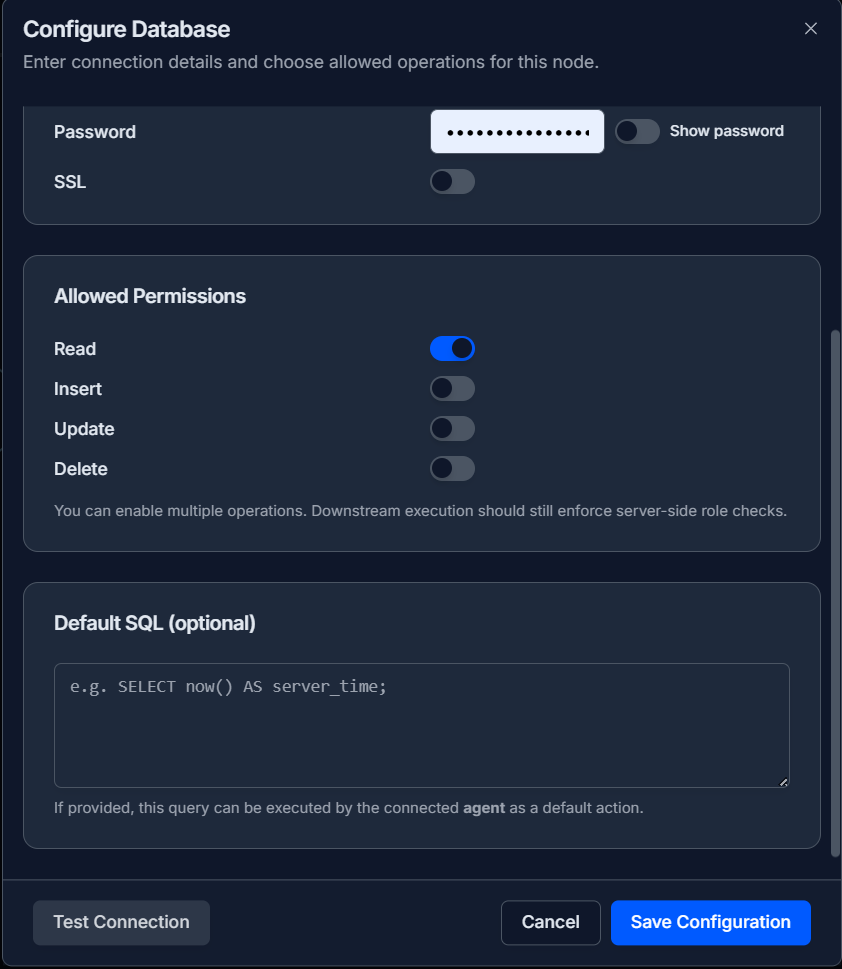
- Allowed Permissions: These toggles act as a safety feature. It's a best practice to only enable the permissions your workflow absolutely needs (e.g., only
Read). - Default SQL (Optional): You can write a specific SQL query here as a primary or fallback action for the connected agent.
4. Final Steps
- Test and Save: Click "Test Connection" to ensure your details are correct. If successful, click "Save Configuration".
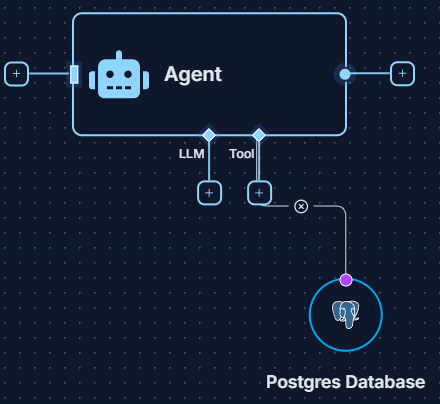
- Connect to Agent: Connect the output of the Postgres Database tool to the
Toolinput socket of an Ai Agent.
Example: Customer Data Lookup 💡
Create a workflow that can look up customer information from your database based on a name.
- Configure the Tool: Set up the Postgres Database Tool to connect to your customer database and ensure the
Readpermission is enabled. - Set Up the Workflow:
- Use a Start Node with the prompt: "Find the email address for the customer named 'John Smith'."
- Connect this Start Node and the Postgres Database Tool to an Ai Agent.
- Get the Result: The Ai Agent will intelligently construct a SQL query (like
SELECT email FROM customers WHERE name = 'John Smith';), execute it, and present the resulting email address in the Logs.
Quick Tips
- Security First: Use database credentials with the minimum required privileges. If an agent only needs to read data, create a read-only user for it.
- Natural Language Queries: You don't need to write SQL in your prompts. Just ask the agent what you want in plain English, and it will translate it into a query.
- Firewall Rules: Ensure that your database server's firewall allows connections from the Agent Vector platform.