Tool: PDF Tool 📄
The PDF Tool is a powerful node designed to extract and process text content directly from PDF files. It acts as the primary way to provide knowledge from a static PDF document to an Ai Agent for analysis.
How It Works
You pre-configure the PDF Tool in the editor by attaching a specific PDF file. When the workflow runs, the tool automatically reads the text from this document and passes it to the next node, making the PDF's content available for use by an Ai Agent.
This is different from the Upload Tool, which prompts for a file during the run. Use the PDF Tool when your workflow will consistently use the same document.
Key Settings
Double-click the PDF Tool node to open its settings panel.
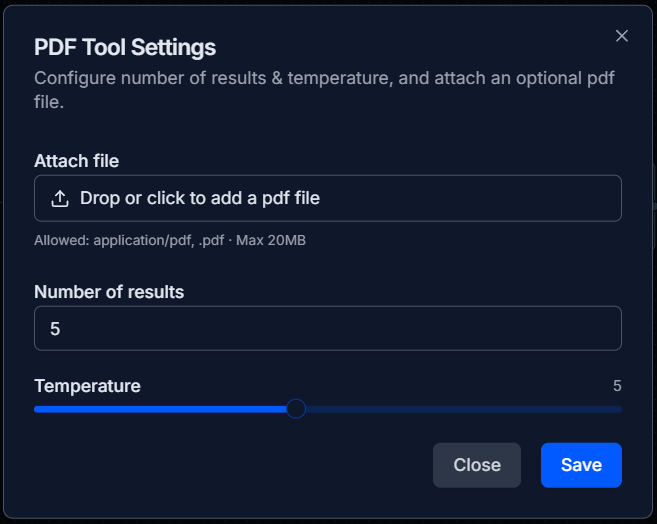
- Attach file: This is the main feature. Drag and drop a PDF file (up to 20MB) to load it into the tool.
- Number of results: For analysis tasks, this field lets you specify how many results you want the agent to focus on (e.g., the "top 5" most relevant paragraphs).
- Temperature: This slider adjusts the focus of the text analysis.
- Lower values lead to more precise, literal results.
- Higher values allow for more abstract or creative interpretations of the text.
Setup
-
Add the Tool: Drag the PDF Tool from the Tools panel onto your canvas.
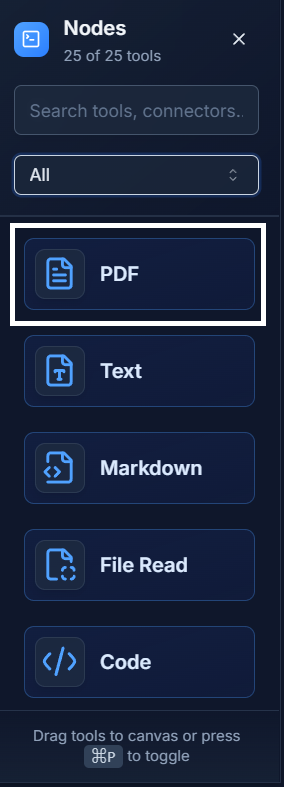
-
Configure It: Double-click the node and attach your
.pdffile in the Attach file area. -
Adjust (Optional): Set the Number of results or Temperature if needed for your specific analysis task.
-
Connect It: Connect the output of the PDF Tool to the
Toolinput socket of an Ai Agent. This gives the agent the "skill" to read this specific PDF.
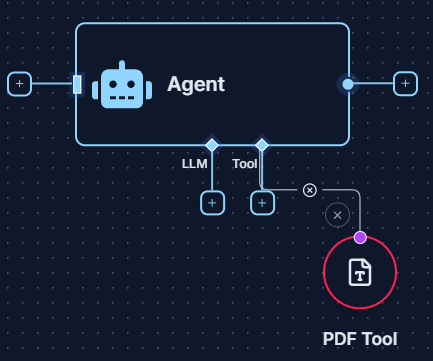
Example: Document Q&A with an Ai Agent 💡
This is the most common use case for the PDF Tool, forming the core of a RAG (Retrieval-Augmented Generation) workflow.
- Load the Document: Configure a PDF Tool by attaching your research paper or report.
- Ask a Question: Use a Start Node to input your question, such as: "Based on the attached paper, what methodology was used?"
- Connect to the Agent:
- Connect the PDF Tool to the
Toolinput of an Ai Agent. - Connect the Start Node to the main input of the Ai Agent.
- Connect the PDF Tool to the
- Get an Answer: When you run the workflow, the Ai Agent will read the content provided by the PDF Tool and generate an answer based only on that document.
Quick Tips
- Static Knowledge Base: Use the PDF Tool when your workflow needs to consistently reference the same document every time it runs.
- Check File Size: Ensure your PDF file is under the 20MB size limit.
- Text Extraction Only: This tool is optimized for extracting text. It may not be able to read text within complex images or scanned documents without OCR.