Tool: SQLite Database 💾
The SQLite Database Tool allows your Agent Vector workflows to connect directly to a lightweight, file-based SQLite database. This is a powerful tool for building data-driven automations that require a simple, serverless database for reading, inserting, or updating data.
How It Works
This tool acts as a bridge to your .db or .sqlite file. You provide the path to the database file and set permissions, and then an Ai Agent can be instructed to perform actions on the database using natural language. The agent intelligently translates your requests into SQL queries.
SQLite is different from databases like Postgres because it's self-contained in a single file, making it easy to set up and use for smaller projects or local data storage.
Setup & Configuration
-
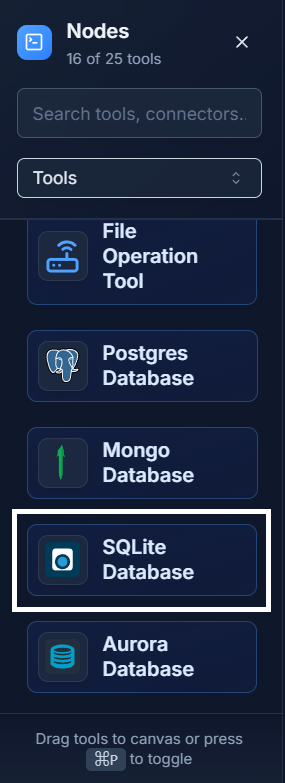
Add the Tool: Drag the SQLite Database tool from the Tools panel onto your canvas.
-
Configure the Connection: Double-click the node to open the Configure Database panel.
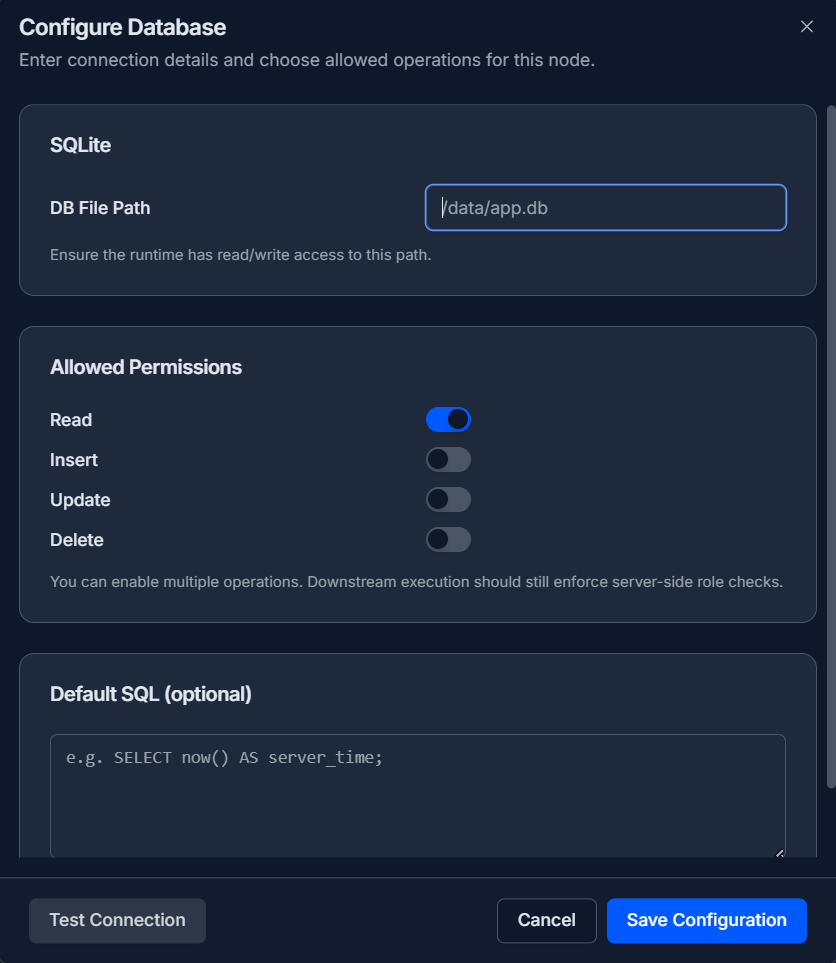
- DB File Path: Provide the path to your SQLite database file (e.g.,
/data/app.db). Ensure that the Agent Vector runtime environment has read/write access to this file path. - Allowed Permissions: These toggles act as a safety feature. It's a best practice to only enable the permissions your workflow absolutely needs (e.g., only
Read). - Default SQL (Optional): You can write a specific SQL query here as a primary or fallback action for the connected agent.
- DB File Path: Provide the path to your SQLite database file (e.g.,
-
Test and Save: Click "Test Connection" to verify that the database file is accessible, then click "Save Configuration".
-
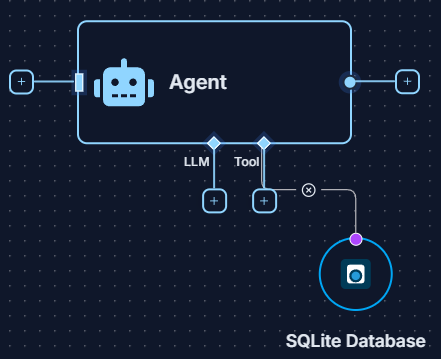
Connect to Agent: Connect the output of the SQLite Database tool to the
Toolinput socket of an Ai Agent.
Example: Product Inventory Check 💡
Create a workflow that can check the stock level of a product stored in a local SQLite database.
-
Configure the Tool: Set up the SQLite Database Tool to connect to your
inventory.dbfile and ensure theReadpermission is enabled. -
Set Up the Workflow:
- Use a Start Node with the prompt: "How many units of 'Product ABC' are currently in stock?"
- Connect this Start Node and the SQLite Database Tool to an Ai Agent.
-
Get the Result: When you run the workflow, the Ai Agent will: a. Understand the request from the Start Node. b. Intelligently construct a SQL query (e.g.,
SELECT stock_level FROM products WHERE product_name = 'Product ABC';). c. Execute the query on your SQLite database file. d. Receive the result and present the stock level as the final answer in the Logs.
Quick Tips
- File-Based: Remember that SQLite is a file. The Agent Vector environment must have persistent storage and the correct permissions to access the file path you provide.
- Natural Language Queries: You don't need to write SQL in your prompts. Just ask the agent what you want in plain English, and it will translate it into a query for you.
- Simplicity: SQLite is perfect for simpler, single-user applications or for caching data within your project, but it is not designed for high-concurrency, multi-user web applications like Postgres.