Tool: Web Tool 🌐
The Web Tool is a powerful node that gives your Ai Agents the ability to access the live internet. You can use it to search for information, read the content of a specific webpage, or scrape data.
This tool is essential for tasks that require up-to-date information that isn't contained in a local file.
How It Works
When connected to an Ai Agent, the Web Tool acts as its browser. The agent can then be instructed to perform a search or go to a specific URL. The text content from the webpage is then passed back into the workflow for the agent to analyze and use.
Setup & Configuration
The Web Tool's power comes from how it's used by an Ai Agent, so its own configuration is minimal.
-
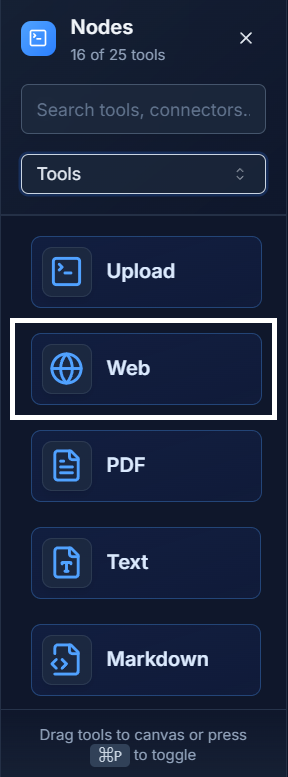
Add the Tool: Drag the Web Tool from the Tools panel onto your canvas.
-
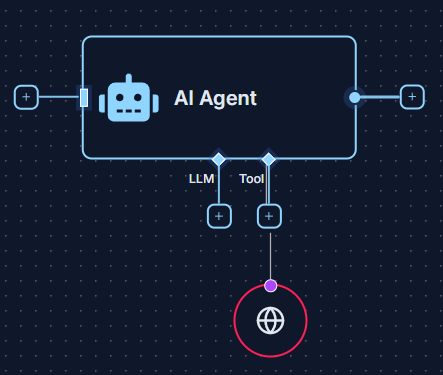
Connect It: Connect the output of the Web Tool to the
Toolinput socket of an Ai Agent. This gives the agent the "skill" to browse the web.
Using the Tool in a Workflow
You don't configure the Web Tool with a URL directly. Instead, you instruct the Ai Agent on what to search for or which URL to visit within the agent's own prompt.
- To search the web, you would give the Ai Agent a prompt like: "Search the web for the latest news on AI advancements and provide a summary."
- To read a specific page, you would provide the URL in the prompt: "Read the content from the webpage https://example.com/article and summarize the key points."
Example: Real-Time News Summarizer 💡
Create a workflow that can give you a summary of today's news from a specific source.
-
Set Up the Workflow:
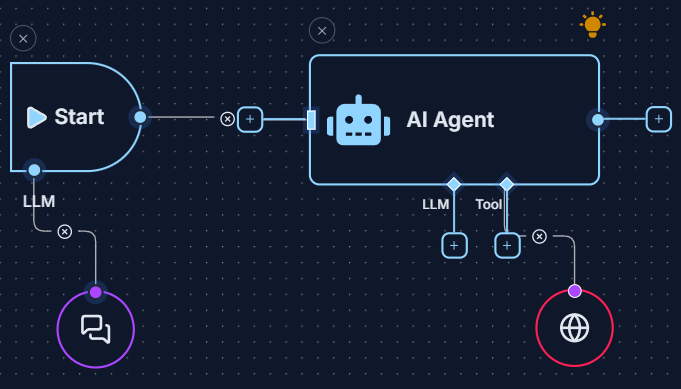
- Create a Start Node (the chat bubble).
- Add an Ai Agent and a Web Tool.
- Connect the Start Node to the main input of the Ai Agent.
- Connect the Web Tool to the
Toolinput of the Ai Agent. - In the Start Node, enter the prompt: "Go to bbc.com/news and summarize the top three headlines for me."
Your workflow should look like this:
-
Run the Workflow:
- Click "Run Workflow".
-
Get the Result: The Ai Agent will use the Web Tool to access the website, read its content, and generate a summary based on your prompt. You can view this summary in the Logs panel.
Quick Tips
- Give Clear Instructions: Be very specific in the agent's prompt about what you want it to search for or which part of a webpage to focus on.
- Dynamic URLs: You can pass URLs from previous nodes into the Ai Agent's prompt, allowing you to build workflows that can visit different pages dynamically.
- Data Scraping: For more advanced use, you can instruct the agent to "scrape" specific pieces of information from a webpage, like product prices, headlines, or contact details.