Tool: File Read Tool 📄
The File Read Tool is a fundamental node for providing pre-existing file content to your workflows. It's designed to read a file that you've already placed in your project, making it a reliable way to supply a consistent knowledge base or data source to an Ai Agent.
How It Works
You configure the File Read Tool by specifying the path to a file within your project's directory. When the workflow runs, the tool reads the content of that file and passes it as text to the next node.
This tool is ideal for static content that is part of your project and doesn't change with every workflow run.
Setup & Configuration
-
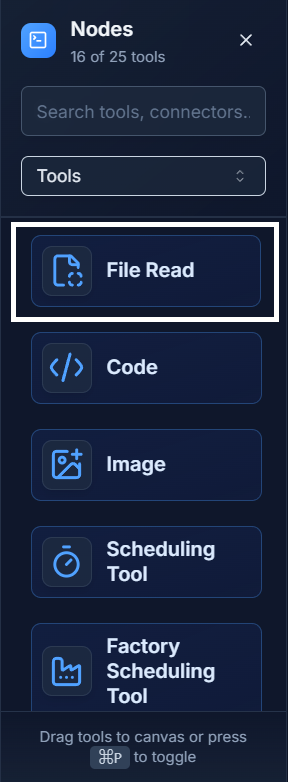
Add the Tool: Drag the File Read Tool from the Tools panel onto your canvas.
-
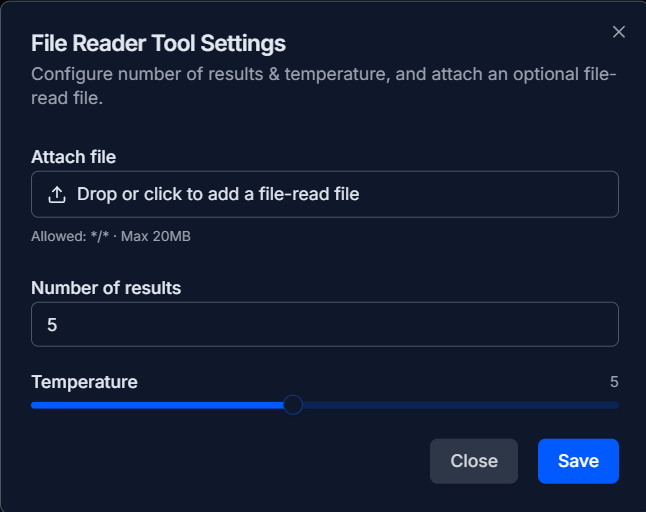
Configure It: Double-click the node to open its settings. In the configuration panel, you will provide the path to the file you want to read.
-
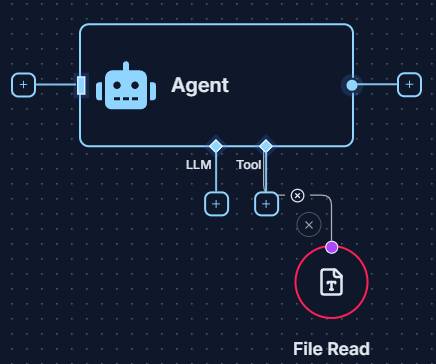
Connect It: Connect the output of the File Read Tool to the
Toolinput socket of an Ai Agent. This gives the agent the "skill" to access the contents of the specified file.
Example: Analyzing a Project Log File 💡
Imagine you have a log file (project_log.txt) that is regularly updated within your project, and you want an Ai Agent to summarize the latest entries.
-
Set Up the File Path: Place your
project_log.txtin an accessible folder within your project. -
Configure the Tool: In the File Read Tool, set the path to point to your
project_log.txtfile. -
Create the Workflow:
- Use a Start Node with the prompt: "Read the attached log file and summarize any new error messages reported today."
- Connect the File Read Tool to the
Toolinput of an Ai Agent. - Connect the Start Node to the main input of the Ai Agent.
-
Get the Result: When you run the workflow, the agent will use the File Read Tool to access the log file's current content and generate a summary based on your prompt, which you can view in the Logs panel.
Quick Tips
- For Static Project Files: This tool is best for files that are part of your project's codebase and are not uploaded by a user during a run.
- Path Accuracy is Key: Ensure the file path you provide in the configuration is correct relative to the project's root directory.
- Distinction from Other Tools:
- For user-provided files during a run, use the Upload Tool.
- For specifically processing PDFs or Markdown, use the dedicated PDF Tool or Markdown Tool.