Tool: Code Tool 💻
The Code Tool is an advanced node that allows you to write and execute custom code directly within your Agent Vector workflow. It's designed for users who need to perform complex calculations, custom data transformations, or interact with APIs that don't have a dedicated connector.
Currently, Python is the supported language.
How It Works
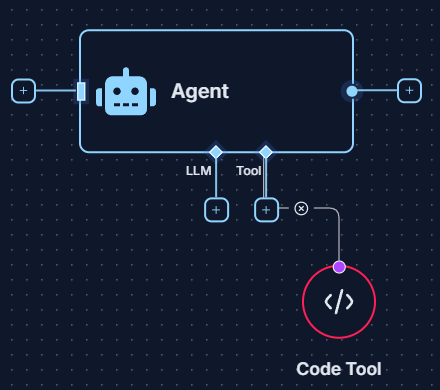
The Code Tool holds a script that can be executed during a workflow run. It is most powerful when connected to the Tool input of an Ai Agent. The agent can then be instructed to run the code, intelligently providing inputs to your script and using its output in subsequent steps.
Working with the Code Tool involves two distinct interfaces: the Configuration Modal for settings and the Code Editor for writing your script.
Setup & Configuration
-
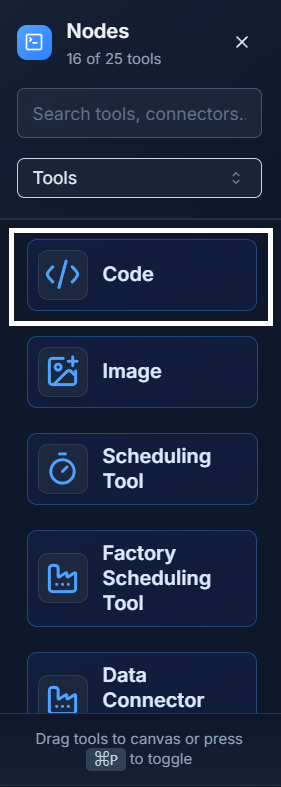
Add the Tool: Drag the Code Tool from the Tools panel onto your canvas.
-
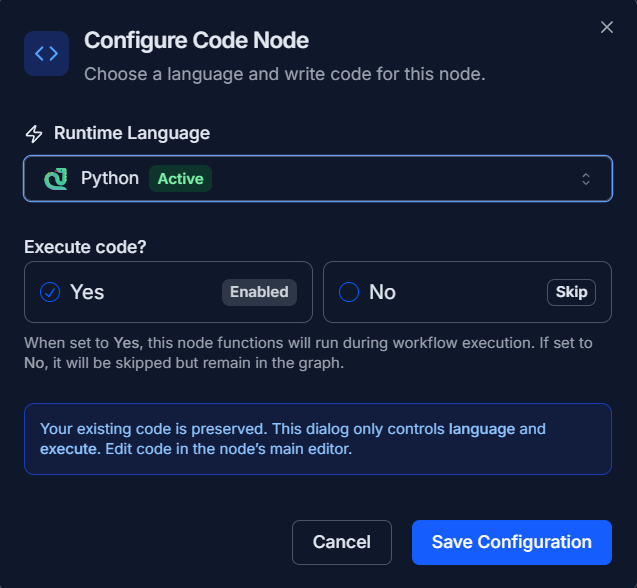
Configure Settings: Click the gear icon on the node to open the Configure Code Node modal. Here you can:
- Select the Runtime Language: Choose
Python. - Enable/Disable Execution: Use the
Execute code?toggle to run (Yes) or skip (No) this node during a workflow. This is useful for testing.
- Select the Runtime Language: Choose
-
Write Your Code: Click on the main body of the Code Tool node on the canvas to open the Code Editor. This is where you write your actual Python script.
-
Connect It: Connect the output of the Code Tool to the
Toolinput socket of an Ai Agent.
Example: Custom Data Calculation 💡
Let's create a workflow that uses the Code Tool to perform a custom calculation that an Ai Agent can trigger.
-
Write the Python Code: In the Code Editor of the Code Tool, write a simple Python function:
def calculate_discount(price, discount_percentage):
  """Calculates the final price after a discount."""
  final_price = price * (1 - discount_percentage / 100)
return f"The final price after a {discount_percentage}% discount is ${final_price:.2f}." -
Set Up the Workflow:
- Use a Start Node with the prompt: "A customer has an item that costs $150 and a 20% discount coupon. Use the code tool to calculate the final price."
- Connect this Start Node and the Code Tool to an Ai Agent.
-
Get the Result: When you run the workflow, the Ai Agent will: a. Understand the request from the Start Node. b. Identify the
price(150) anddiscount_percentage(20). c. Intelligently call thecalculate_discountfunction from the Code Tool with these values as arguments. d. Receive the formatted string back from the code and present it as the final answer in the Logs.
Quick Tips
- An Advanced Tool: This node is primarily for users who are comfortable writing code in languages like Python.
- Agent Integration is Key: The Code Tool is most effective when an Ai Agent can intelligently decide when to run the code and what inputs to provide.
- Temporarily Disable Code: Use the
Execute code?->Nooption in the configuration to quickly disable a Code Tool during testing without deleting it. - Standard Libraries: The Python environment includes many standard libraries. For specific package requirements, please refer to our advanced environment guides.