Connector: Microsoft Teams 💬
The Microsoft Teams Connector acts as a bridge between your Wingerx workflows and your Microsoft Teams channels. It allows your automations to send messages, alerts, and results directly to your team chat.
How It Works
This connector uses a special, secure URL from Teams called an Incoming Webhook. Think of this webhook as a dedicated phone number for a specific Teams channel. When your workflow sends a message to this URL, it instantly appears as a post in that channel.
Setup & Configuration
1. Add the Node
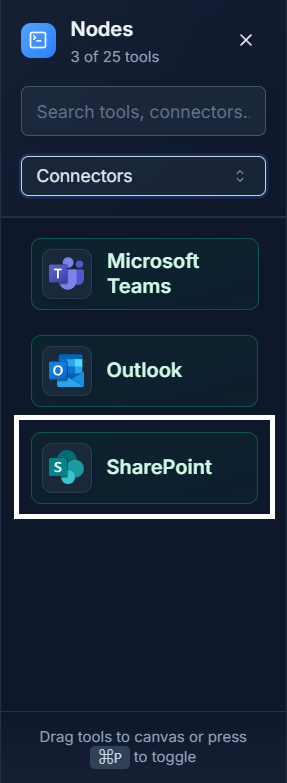
First, drag the Microsoft Teams connector from the Connectors panel onto your canvas.
2. Get Your Webhook URL from Teams
Before you can configure the node, you need to create a webhook URL in Teams.
- In Microsoft Teams, go to the channel where you want to post messages.
- Click the three dots (
...) next to the channel name and select Connectors. - Find Incoming Webhook in the list and click Add, then Configure.
- Give your webhook a descriptive name (e.g., "Wingerx Alerts") and an optional image.
- Click Create.
- A new dialog will show your unique Webhook URL. Click the Copy button.
3. Configure the Node
Now, double-click the Microsoft Teams node in Wingerx to open its settings.
- Webhook URL: Paste the URL you copied from Teams into this field.
- Message: Write the message you want to send. You can include data from previous nodes to make your messages dynamic.
Example: Daily Report Notification 💡
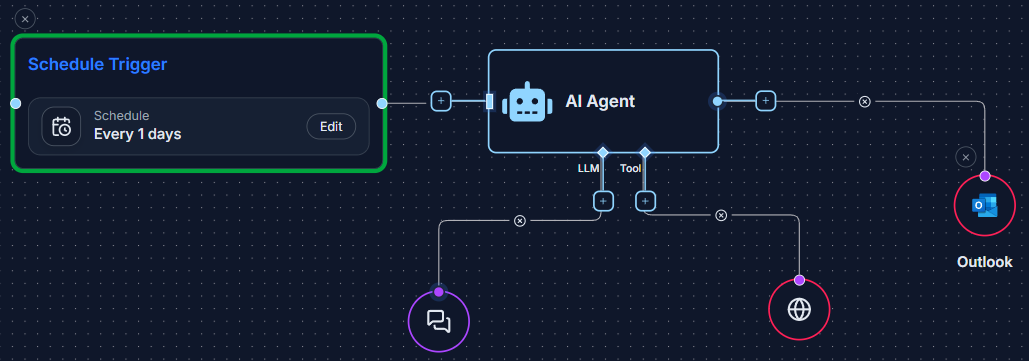
Send a daily summary from an Ai Agent directly to a "Daily Briefing" channel.
- A Schedule Trigger runs every morning at 8 AM.
- An Ai Agent summarizes a report or web page.
- The final step is the Microsoft Teams Connector. In its Message field, you link the summary text generated by the Ai Agent.
Quick Tips
- Secure Your Webhook: Treat your Webhook URL like a password. Don't share it publicly.
- Customize Notifications: Giving your webhook a custom name and icon in Teams makes your automated messages easily recognizable.
- Dynamic Messages: Use outputs from previous nodes (like an Ai Agent's summary) to send rich, data-driven messages.