Connector: SharePoint 📂
The SharePoint Connector allows your Wingerx workflows to read, write, and manage data in your Microsoft SharePoint sites. Use it to automate document management, data entry into lists, and more.
How It Works
After a one-time secure connection to your Microsoft account, you can configure the node to perform a specific action on a SharePoint Site, List, or Document Library that you have access to.
Setup & Key Settings
-
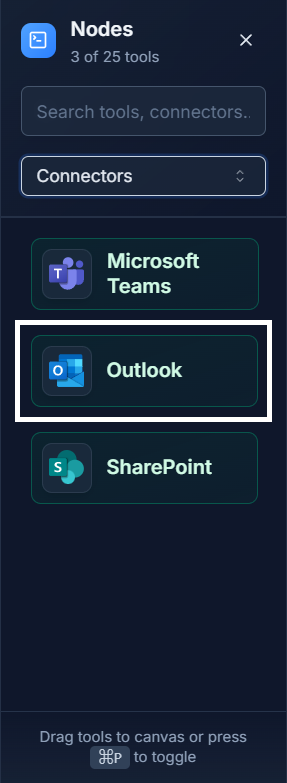
Add the Node: First, drag the SharePoint connector from the Connectors panel onto your canvas.
-
Configure the Node: Double-click the node to open its settings. The first time you use the connector, you will be prompted to securely sign in to your Microsoft account.
- Operation: Select the action you want to perform from a dropdown menu. Common operations include:
Get List ItemsCreate List ItemUpload FileDownload File
- Site Address: The URL of the SharePoint site you want to connect to.
- List/Library Name: The name of the specific list or document library for the operation.
- Input Fields: Based on the operation, additional fields will appear to provide the necessary data (e.g., the properties for a new list item, or the file to upload).
Example: Log AI Results to a SharePoint List 💡
Create a workflow that automatically logs the results of an AI analysis into a central SharePoint list for your team to review.
- An Ai Agent runs and generates a summary of customer feedback, outputting the
summaryand acategory(e.g., "Positive"). - The next step is the SharePoint Connector, configured with the following settings:
- Operation:
Create List Item - Site Address: Your team's SharePoint site URL.
- List Name:
AI Analysis Logs - Item Properties: You map the data from the previous node. For the "Title" column in SharePoint, you might use the current date. For the "Summary" column, you link the
summaryoutput from the Ai Agent.
- Operation:
Quick Tips
- Check Permissions: Ensure the account you use to connect has the necessary permissions (e.g., read, write) on the SharePoint site and list you are trying to access.
- Use Dynamic Data: Mapping data from previous nodes is the key to powerful automation. Use it to populate list items or determine which file to upload.
- List vs. Library: In SharePoint, a "List" is like a spreadsheet for data, while a "Document Library" is for storing files. Choose the correct one for your operation.