Google Drive
📁 Google Drive Connector
List, read, analyze, and save files from Google Drive inside your workflows.
The Google Drive Connector lets your workflows interact with files and folders stored in Google Drive — so you can search and list files, read their contents, run AI analysis, or upload newly generated documents back to Drive.
Use it to power document-review flows, reporting pipelines, contract analysis, or any workflow that needs to work with Drive files.
🧠 How It Works
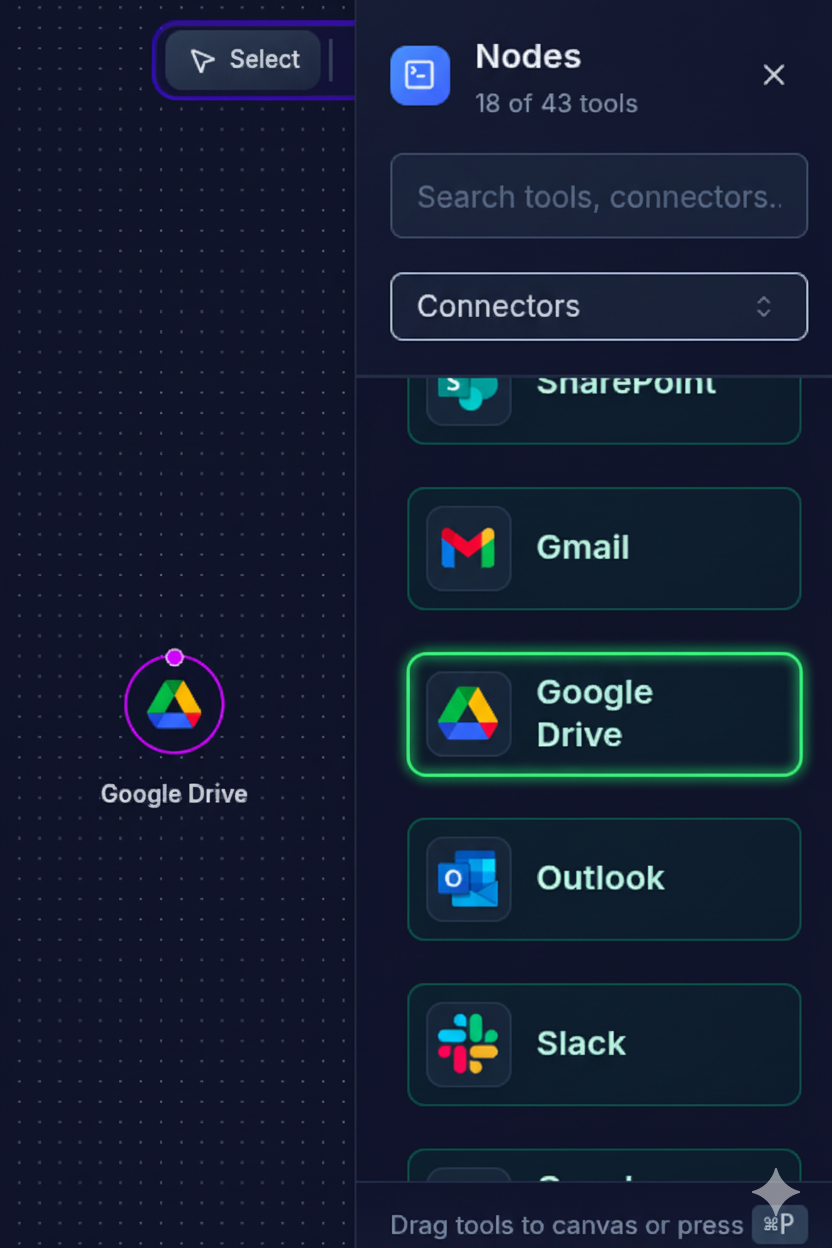
When you drop the Google Drive node into a workflow:
- The node authenticates using a selected Drive credential.
- Operations and filters are applied (list, read, analyze, upload).
- The Google Drive API is called via your backend.
- The resulting file metadata and/or contents are passed to the next node (AI, Slack, database, etc.).
This lets you chain Drive with AI agents, reporting systems, CRMs, or any other tools in your canvas.
⚙️ Configuration UI Guide
1️⃣ Credential Selection
At the top, select which Google Drive credential this node should use.
You can:
- Pick an existing connection
- Search credentials by provider or workspace
- Or create a new connection directly from the dropdown
All permissions and scopes are controlled by this credential.
2️⃣ Drive Account
This section configures which Drive account and how many files to work with.
User Email
The email address of the connected Google account.
Typically auto-filled once a credential is chosen.
Max Files (per run)
The maximum number of files this node will return in a single execution.
- Use a lower limit for lightweight executions.
- Use a higher limit if your workflow is designed to batch-process many files.
Example values: 10, 20, 50, etc.
3️⃣ Operations
Choose which actions the node is allowed to perform with Google Drive.
Each operation maps to a backend capability.
- List – List files using your backend’s
fetch/search endpoint. - Read – Read file contents and metadata (handled by your backend).
- Analyze – Run custom analysis on files (your backend defines logic; often AI-based).
- Upload – Upload or save new files into Drive (uses your backend’s upload endpoint).
You can enable one or multiple operations depending on what the workflow needs.
Example: Turn on List + Read to fetch a set of files and pass their contents to an AI node.
4️⃣ Folder & Filters
This section scopes which files the node can see.
Folder ID
Specifies the folder where the operation should run.
- Use
rootto work from the top level of the Drive. - Use a specific folder ID to restrict access to one folder or workspace area.
Example:
root1sABcDeFGhijkLmNoPqRstuVwxyz1234(a specific Drive folder ID)
Search Query (optional)
An advanced filter using your backend’s supported query syntax (usually modeled on the Google Drive query language).
Example queries:
modifiedTime > '2025-01-01T00:00:00'mimeType = 'application/pdf'modifiedTime > '2025-01-01T00:00:00' AND mimeType = 'application/pdf'"Quarterly Report" in name
This is ideal when you want to:
- Only fetch recent files
- Restrict by MIME type
- Match filenames or specific metadata
File Types
Multi-select for file categories to include when listing/reading:
documentspreadsheetpdf
You can add multiple and they’ll appear as removable tags (e.g. document × spreadsheet × pdf ×).
5️⃣ Save Options (for Upload / Generated Artifacts)
This section controls how newly created or uploaded files should be stored.
File Type
The output type for generated artifacts:
PDFDOCXSpreadsheet(or any types your backend supports)
This determines the extension and MIME type used when saving to Drive.
File Name
Base filename used when the workflow uploads or saves a file.
- Do not include the extension; it is added automatically from the selected File Type.
- Can be static (e.g.
weekly-summary) or dynamically generated by your backend.
Examples:
weekly-summarycustomer-churn-reportcontract-review-output
🚀 What You Can Do With the Google Drive Connector
📜 List Files
Use List to fetch files inside a folder, filtered by type or search query.
Ideas:
- Find all PDFs in a shared “Contracts” folder.
- Fetch the latest
Nspreadsheets for analytics. - Build a file-picker-like experience inside your workflow.
📖 Read Files
Use Read to pull file contents and metadata into your workflow.
Use cases:
- Send document text to an AI node for summarization or extraction.
- Parse CSV/Excel data into a structured format.
- Index Drive content into your own knowledge store.
🧠 Analyze Files
Use Analyze when your backend has custom logic (often AI) to process files.
Examples:
- Classify contracts by type or risk.
- Extract key fields (names, dates, amounts) from PDFs.
- Generate summaries or bullet points for long documents.
⬆️ Upload / Save Files
Use Upload to push artifacts created by your workflow back into Drive.
Examples:
- Save AI-generated summaries as PDFs into a “Reports” folder.
- Upload cleaned CSVs after data transformation.
- Store conversation transcripts or workflow outputs as documents.
🛠️ Technical Operations
Your backend typically exposes these operations for the node:
| Operation | Function Name | Description | Required Parameters |
|---|---|---|---|
| List Files | google_drive_list_files | List files from Google Drive according to folder, query, and file-type filters. | folder_id (optional), limit (optional) |
| Read File | google_drive_read_file | Read a file’s content and metadata. | file_id |
| Analyze File | google_drive_analyze_file | Run custom analysis logic on one or more files. | file_id or file_ids |
| Upload File | google_drive_upload_file | Upload a new file or artifact into Drive. | folder_id, file_name, file_type, content |
The exact function names may vary in your implementation; adapt them to match your backend.
🔐 Authentication & Permissions
The Google Drive Connector uses OAuth 2.0 via the selected credential.
Typical scopes include:
- Read file metadata
- Read file contents
- Create & upload files
Your users can revoke access at any time from their Google Account security settings.
🧩 Workflow Examples
Example 1 – List and Read Recent PDFs
Fetch up to 20 PDFs from the root folder, modified within the last 7 days.
{
  "type": "googleDriveConnectorNode",
  "config": {
    "operations": ["list", "read"],
    "user_email": "[email protected]",
    "max_files": 20,
    "folder_id": "root",
    "search_query": "modifiedTime > '2025-01-01T00:00:00' AND mimeType = 'application/pdf'",
    "file_types": ["pdf"]
  }
}
Example 2 – Analyze Files and Save a Summary PDF
List recent documents, send them for analysis, then upload a generated summary.
{
  "type": "googleDriveConnectorNode",
  "config": {
    "operations": ["list", "read", "analyze", "upload"],
    "user_email": "[email protected]",
    "max_files": 10,
    "folder_id": "root",
    "file_types": ["document", "pdf"],
    "save_options": {
      "file_type": "PDF",
      "file_name": "weekly-summary"
    }
  }
}
In a typical workflow, the Google Drive node feeds file content into an AI node, which creates the summary body; then Upload writes that summary back to Drive using the selected file_type and file_name.