💼 LinkedIn Connector
Create posts and fetch activity from your LinkedIn account directly inside your workflows.
The LinkedIn Connector lets your workflows publish posts to LinkedIn or fetch your recent activity.
Use it to automate social publishing, schedule posts, build reporting dashboards, or trigger workflows when your content goes live.
🧠 How It Works
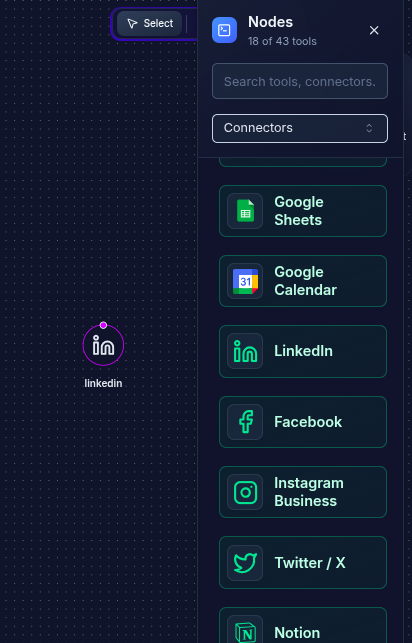
When you add the LinkedIn node to your workflow:
- The node authenticates using a selected LinkedIn credential.
- You choose the operation (Create Post or Read Posts).
- Inputs are validated (post text, visibility, limit, etc.).
- Your backend calls the official LinkedIn API.
- The results (created post data or list of recent posts) are passed to the next node.
This makes it easy to integrate LinkedIn with AI content creators, schedulers, CRMs, or analytics flows.
⚙️ Configuration UI Guide
1️⃣ Credential Selection
At the top of the LinkedIn node, choose which LinkedIn credential you want to use.
You can:
- Pick an existing connected account
- Search credentials by provider or workspace
- Add a new LinkedIn connection
The selected credential determines the identity and permissions for this node.
2️⃣ Operation
Choose what this LinkedIn node should do.
Available Actions
- Create Post – Publish a new post to the authenticated LinkedIn profile or company page.
- Read Posts – Fetch your recent LinkedIn posts (up to 100).
Selecting an action reveals a corresponding configuration panel.
✍️ Create Post
This section appears when Action = Create Post.
Text (≤ 3000 chars)
Write the content for your LinkedIn post.
- Emojis are supported
- Hashtags work normally
- You can dynamically generate text from previous nodes (e.g., AI agent output)
Example:
Excited to announce our new product launch! 🚀 #innovation #tech
Visibility
Select who can view the post.
PUBLIC– Anyone on LinkedInCONNECTIONS– Only your direct connectionsLOGGED_IN– Any logged-in LinkedIn user (varies by API scope)
Set this based on your campaign needs.
📄 Read Posts
This section appears when Action = Read Posts.
Limit (1–100)
The number of recent posts to fetch.
- Default:
10 - Min:
1 - Max:
100
Useful for dashboards, analytics, or feeding posts into an AI node for summarization.
🛠️ Technical Operations
The backend exposes two core operations:
| Operation | Function Name | Description | Required Parameters |
|---|---|---|---|
| Create Post | linkedin_create_post | Publish a new post to LinkedIn | text, visibility |
| Read Posts | linkedin_read_posts | Fetch recent posts from a LinkedIn profile | limit (optional) |
Example: Function Calling (Create Post)
{
  "type": "linkedinConnectorNode",
  "config": {
    "operations": ["post"],
    "access_token": "{{linkedin_access_token}}",
    "text": "Excited to announce our new product launch! 🚀 #innovation #tech",
    "visibility": "PUBLIC"
  }
}
Example: Function Calling (Read Posts)
{
  "type": "linkedinConnectorNode",
  "config": {
    "operations": ["read"],
    "access_token": "{{linkedin_access_token}}",
    "limit": 10
  }
}
🔐 Authentication & Permissions
The LinkedIn connector uses OAuth 2.0.
Depending on your setup, permissions typically include:
w_member_social– Publish postsr_liteprofile– Read basic user profiler_member_social– Read posts / activity
Users can revoke access from their LinkedIn security settings at any time.
🚀 Workflow Examples
Example 1 — Create AI-Generated Marketing Post
- AI node generates marketing copy.
- LinkedIn node publishes the post.
{
  "type": "linkedinConnectorNode",
  "config": {
    "operations": ["post"],
    "text": "{{ai.generated_text}}",
    "visibility": "PUBLIC"
  }
}
Example 2 — Fetch Posts for an Analytics Dashboard
Fetch 50 latest posts and send them to an AI node for insights.
{
  "type": "linkedinConnectorNode",
  "config": {
    "operations": ["read"],
    "limit": 50
  }
}
Example 3 — Auto-Schedule Weekly LinkedIn Posts
- AI writes a weekly summary.
- LinkedIn node publishes it.
- Scheduler triggers the flow every Friday.
{
  "type": "linkedinConnectorNode",
  "config": {
    "operations": ["post"],
    "text": "{{weekly_summary}}",
    "visibility": "PUBLIC"
  }
}
🧩 Tips & Best Practices
- Use AI nodes upstream to generate professional copy.
- Combine with Scheduler to automate consistent posting.
- Store LinkedIn post IDs in a database for analytics or audits.
- Use Read Posts before posting again to avoid duplicates.