Slack
💬 Slack Connector
Send messages, read channel history, and fetch workspace users or channels directly inside your workflows.
The Slack Connector allows your workflows to interact with your Slack workspace — letting you send messages, read recent conversations, fetch channels, retrieve users, and more.
Use it to automate notifications, collect inputs from Slack, or build powerful human-in-the-loop workflows.
🧠 How It Works
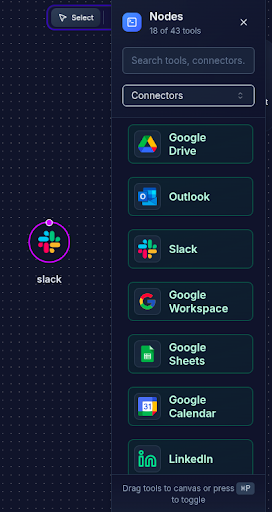
When you drop the Slack node into a workflow:
- The node authenticates using a selected Slack credential.
- You enable operations such as sending a message or reading channels.
- Slack’s API is called via your backend.
- The response (channels, messages, users, etc.) is passed to the next workflow node.
This makes Slack a powerful input/output tool in your automation canvas.
⚙️ Configuration UI Guide
1️⃣ Credential Selection
Choose the Slack credential you want this node to use.
You can:
- Pick an existing Slack connection
- Search by provider or workspace
- Or add a new connection
The credential determines which Slack workspace and permissions the node has access to.
2️⃣ Operations
Toggle the operations you want enabled.
Each operation maps directly to a capability in your backend Slack integration.
Send
Send a message to a Slack channel.
Read
Read recent messages from a selected channel.
Get Channels
List all channels in the workspace (optionally excluding archived ones).
Get Users
List users in the Slack workspace.
Get Channel Members
Retrieve the members of a specific channel.
You can enable one or multiple operations depending on your workflow needs.
3️⃣ Channel & Message
Some operations require additional input.
Channel (required for Send, Read, Get Channel Members)
- Select from the list of channels fetched using your credential.
- Only channels the credential has access to will appear.
Message Text (for Send)
Write the message you want to send to the selected channel.
Examples:
New lead received! 🔥Daily summary ready.AI workflow finished processing.
🚀 What You Can Do With the Slack Connector
💌 Send Notifications
Automatically send updates to Slack:
- AI-generated reports
- Workflow completion notifications
- Alerts and error messages
🧾 Read Channel Messages
Fetch recent messages and pass them to an AI node for:
- Summarization
- Sentiment analysis
- Keyword extraction
- Categorization
📡 Get Channels
Useful for:
- Building Slack channel selectors in your workflow configuration
- Storing dynamic lists of channels
- Automating workspace-wide operations
👥 Get Users
Fetch workspace users for:
- Routing tasks
- Assigning responsibilities
- Mentioning users dynamically
🧑🤝🧑 Get Channel Members
Retrieve members of a specific channel to:
- Send targeted notifications
- Create group mentions
- Analyze participation
🛠️ Technical Operations
Your backend typically exposes these functions:
| Operation | Function Name | Description | Required Parameters |
|---|---|---|---|
| Send Message | slack_send_message | Send a message to a channel. | channel, text |
| Read Messages | slack_read_messages | Read recent messages from a channel. | channel, limit? |
| Get Channels | slack_get_channels | List all workspace channels. | exclude_archived? |
| Get Users | slack_get_users | List users in the workspace. | — |
| Get Channel Members | slack_get_channel_members | List members of a given channel. | channel |
Function names may vary — adapt based on your backend implementation.
🔐 Authentication & Permissions
The Slack Connector uses OAuth 2.0 with the selected credential.
Depending on your scopes, the connector may access:
- Channels (public & private)
- Chat:Write (send messages)
- Channels:Read
- Users:Read
- Conversations:History
Users can disconnect Slack from their workspace at any time.
🧩 Workflow Examples
Example 1 – Send a Slack Notification After an AI Task
{
  "type": "slackConnectorNode",
  "config": {
    "operations": ["send"],
    "channel": "C0123456",
    "message_text": "AI report completed! 🎉"
  }
}
Example 2 – Fetch Channel Messages For AI Summarization
{
  "type": "slackConnectorNode",
  "config": {
    "operations": ["read"],
    "channel": "C0712345"
  }
}
Example 3 – List Channels and Fetch Members
{
  "type": "slackConnectorNode",
  "config": {
    "operations": ["get_channels", "get_channel_members"],
    "channel": "C9123412"
  }
}